Team and QA
Add team members and give them access
How people join through your GitHub org, what owners and members can see, and granting access to a project's calls and memory
Steps checked September 12, 2026
Your team joins Glitchgrab through GitHub — there is no invite to send. What you control is how much each person can see, repo by repo.
How people join
Anyone who belongs to your GitHub organisation and signs in to glitchgrab.dev with GitHub is added to your Glitchgrab org automatically:
- GitHub org admins become OWNER — every repo, report, setting and bill.
- Everyone else becomes MEMBER.
To add someone, add them to the GitHub organisation, then ask them to sign in. To remove someone, remove them from the GitHub organisation.
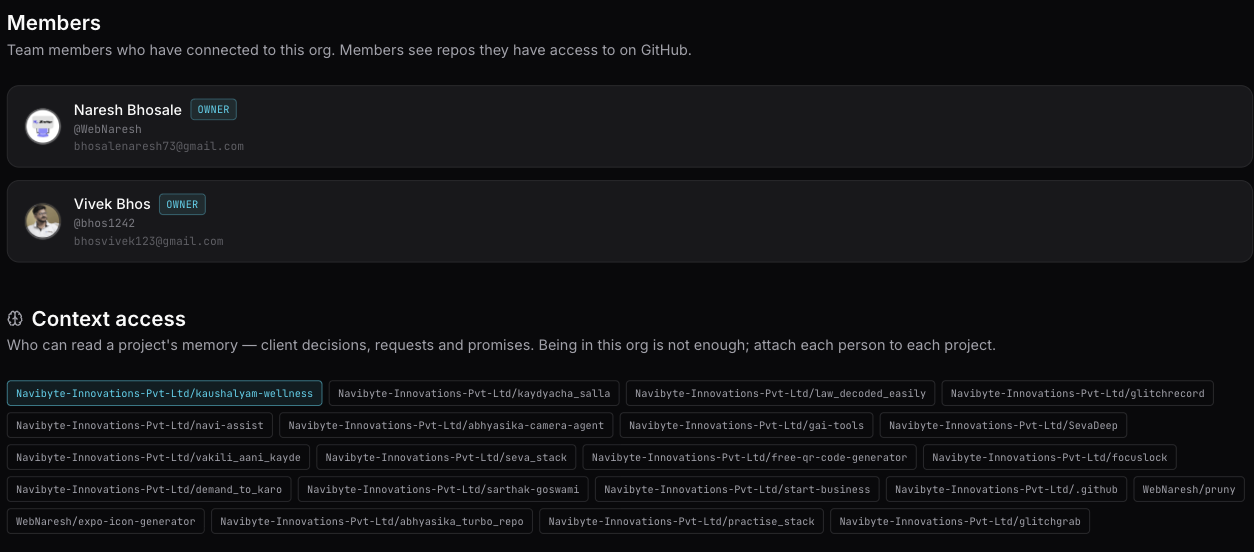
Open Members in the left sidebar to see who has joined and their role.
What a member can see
A MEMBER's sidebar has Chat, Repos, Calls, Context and Guides only:
- Chat — file bugs into repos they can access on GitHub.
- Repos — a read-only list of those repos.
- Guides — read the guides; only owners write them.
- Calls and Context — empty until you grant access (below).
Overview, Reports, Feedback, Members, API Tokens, Billing and Settings send a member back to Chat.
Give someone access to a project's calls and memory
Recorded client calls and project memory (decisions, requests, promises) are the most sensitive things in Glitchgrab, so being in the org grants nothing here. You attach each person to each project.
- Open Members and scroll to Context access.
- Press the repo chip for the project.
- Next to the person, press grant access. It changes to has access and you see Context access granted.
Press has access to take it away: Context access revoked.
Only the repo's owner can change this — Only the repo owner can change context access.
With access, the person sees that project's calls on Calls and its items on Context.
Testers are different
QA testers don't need GitHub at all. They sign in with their phone and see only the repos you assign. See Add a QA tester.
Troubleshooting
- Someone signed in but isn't listed — they are not in the GitHub organisation, or they signed in before being added. Add them on GitHub and have them sign out and in again.
- A member sees no calls — grant them Context access for that project.
- A member can't file into a repo from Chat — they lack access to that repo on GitHub. Give them access on GitHub.