Calls
Book demos from your website
Let prospects book a demo from your real Google Calendar availability — in a dialog on your site or over WhatsApp — and get every demo recorded
Steps checked November 1, 2026
Visitors on your website can book a demo without leaving the page, in two steps: they fill in their details and pick a free slot from your real Google Calendar on one screen, then confirm with a code sent to their phone. They get a Google Meet invite, and the demo is recorded and transcribed automatically, like any other call.
They can also book over WhatsApp, where they answer the same questions in chat.
Before you start
- A Google Calendar connected to Glitchgrab (see Record calls automatically with Google Calendar). Without one, no times can be offered.
- The
glitchgrabSDK on your site, with agg_token for the project (see Add Glitchgrab to your Next.js app). - You own the project, or have Context access to it.
1. Set up booking for the project
Open Calls in the left sidebar and pick the Booking tab.
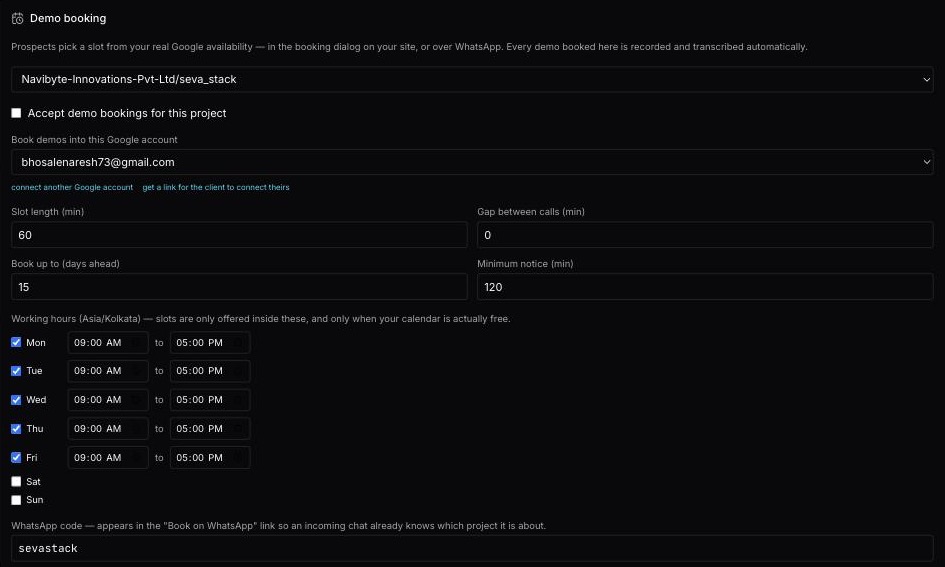
- Pick the project (shown when you have more than one).
- Tick Accept demo bookings for this project. Working with Claude over the Glitchgrab MCP? Ask it to turn booking on. It checks the calendar and working hours first and tells you exactly what is missing.
- Book demos into this Google account: the calendar that receives the demos. This is useful when you run a client's product: you can book into their calendar.
- Set the slots:
- Slot length (min): how long a demo is.
- Gap between calls (min): breathing room between demos.
- Book up to (days ahead): how far ahead people can book.
- Minimum notice (min): the soonest someone can book from now.
- Working hours: tick each day and set its start and end time, in the timezone shown. Slots are offered only inside these hours, and only when your calendar is actually free.
- WhatsApp code: a short word for the project (it starts as the project's name). It goes into the "Book on WhatsApp" link, so an incoming chat knows which project it is about. If you leave it empty, the WhatsApp option never appears.
- Press Save booking settings. You will see Booking settings saved.
If no calendar is connected yet, the panel says No Google Calendar connected. Booking cannot offer times until you connect one — connect it in Settings, then come back.
The name prospects see
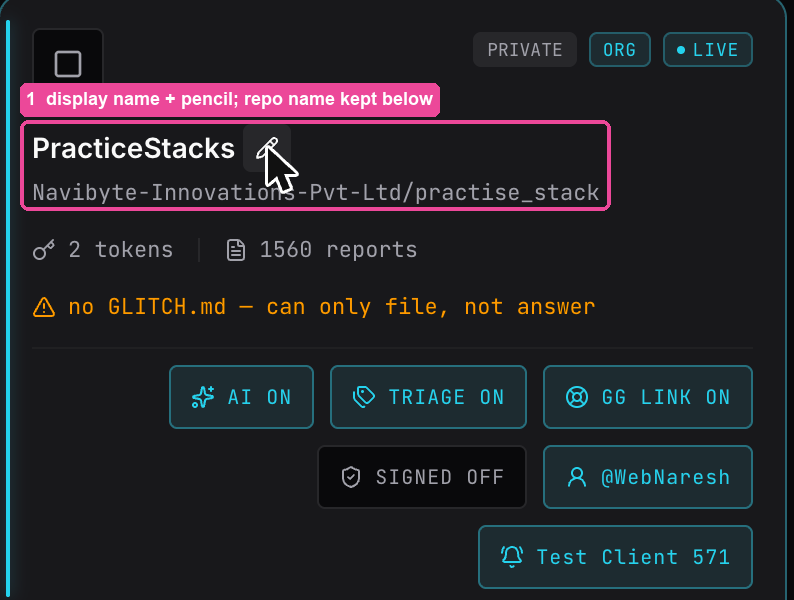
WhatsApp messages and calendar invites name the project, for example booked a PracticeStacks demo. By default that is the GitHub repo name (such as practise_stack). To change it, open Repos, click the pencil next to the repo name, type the name your customers know and press Save. The card then shows that name, with the repo name underneath. Leave the box empty to go back to the repo name. Messages already sent keep the old name.
Book into a client's calendar
To use a calendar you don't sign in to yourself, choose one of these:
- connect another Google account: works only in your own browser, while you are signed in as that account.
- get a link for the client to connect theirs: creates a link to send them (Link ready — send it to the client). They open it and see exactly what access is asked for: only free/busy times and creating demo events, never their email, contacts or other meetings. Then they press Continue with Google. They need no Glitchgrab account. The link works once and expires in 7 days.
Ask questions before booking
Under Questions before booking you can ask prospects a few things, for example which language they want the demo in, or their organisation's name. The questions appear on the same screen as their name, mobile number and email, next to your times. Each question is either a pick-one list or a short typed answer (up to 300 characters). You can add up to 5 questions; a pick-one question has 2–9 choices, typed one per line (commas are fine). Tick can be skipped to make a question optional. The answers show on the calendar event and in Upcoming calls. Every answer also shows in the "new demo booked" WhatsApp alert, one question per line (How big is your NGO? - 100 to 500). A skipped question says skipped, and a long typed answer is shortened there (the calendar event keeps it whole). Until Meta approves the new alert message, the alert shows only the pick-one answers, in brackets after the name.
Try changes before prospects see them:
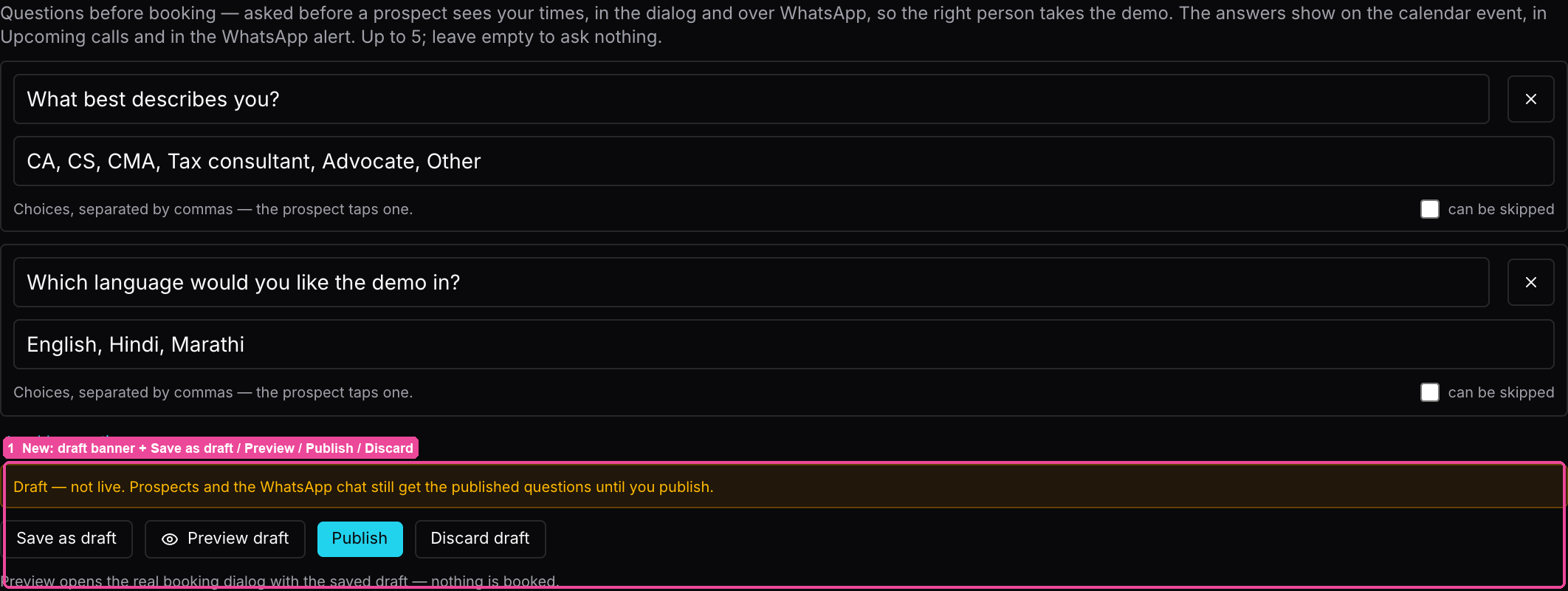
- Edit the questions and press Save as draft. You will see Draft saved — prospects still see the live questions, and a bar saying Draft — not live.
- Press Preview draft. The real booking dialog opens with your draft, marked Preview — nothing is booked. Fill it in, answer, pick a time and press the button. It says nothing was booked and no code was sent.
- Press Publish to make the draft live on your site and in the WhatsApp chat (Questions are live), or Discard draft to throw it away.
While a draft exists, Save booking settings saves your question edits into the draft too, so changing working hours never publishes them by accident. Preview needs a connected calendar.
2. Add the button to your site
import { BookDemoButton } from "glitchgrab";

<BookDemoButton />                    // a "Book a demo" button
<BookDemoButton label="Talk to us" />

// Your own button
<BookDemoButton>
  {({ onClick }) => <button onClick={onClick}>Book a demo</button>}
</BookDemoButton>
Or open it from anywhere with useGlitchgrab().openBookingDialog(). It must be inside GlitchgrabProvider.
What the visitor sees
Step 1: details and a slot, on one screen.
- Full name
- Mobile number, with the note We text a code here to confirm, then a reminder before the call. A number with the wrong number of digits is refused with the reason under the box.
- Your questions: choices to tap, or a box to type in.
- The month, with bookable days picked out, and that day's times under it, in the visitor's own timezone. Tapping a time highlights it; they stay on the same screen.
- If you set a WhatsApp code, the left side also shows Book on WhatsApp with We'll ask the same questions in chat.
The bar at the bottom shows the time they picked and the Send verification code button. The button never looks disabled. If they press it with anything missing, nothing is sent: each empty field turns red, the bar lists everything that is Still needed, and a short message above the bar says what to add (for example Add your name and a day and time) and fades after a few seconds. A skippable question is never listed.
On a phone, or a narrow window, the details come first and the calendar and times sit below them, with the button bar staying at the bottom.
Step 2: the code. They see We texted a code to their number, and Your slot is held for 10 minutes. They enter the Code and press Confirm booking.
Booked. They see You're booked. with the date, time, timezone and Google Meet. A calendar invite goes to their email, and a WhatsApp reminder is sent before the call. Add to Google Calendar and Download .ics (Outlook, Apple) save the demo, with its Meet link, to their own calendar (the .ics file also sets a reminder 15 minutes before). These are one-time copies: if the demo is later rescheduled or cancelled, Google Calendar users are updated by Google's own email, but a downloaded file or a separate Google entry is not. Open the meeting link takes them to the Meet. These buttons appear once your site runs a glitchgrab SDK version that includes them.
Booking over WhatsApp
A visitor who taps Book on WhatsApp lands in a chat that already names your project. Glitchgrab asks your questions first (a typed question is a normal message; they reply with text, or tap Skip when it is optional), then walks them through the date and time with tap-to-pick lists, and confirms the same way.
From the confirmation or reminder message, they can tap Reschedule to pick a new time. The calendar event is moved (the Meet link stays the same), and the recording follows the new time. To cancel, they type cancel and confirm.
After a demo is booked
- The event appears in the chosen Google Calendar with a Meet link.
- The recording bot joins every booked demo on its own. You don't need to turn on auto-record. The demo is recorded under the project it was booked for, even if that calendar usually files calls under another project. It shows on Calls as soon as it is booked.
- Auto-record in Calls → Schedule still controls your other calendar meetings; it does not affect booked demos.
- After the demo: see Read a call's transcript and Turn a call into GitHub issues.
Messages visitors may see
- Couldn't load available times / Couldn't reach the booking service: try again in a moment.
- That slot was just taken — pick another: someone else is holding that time. Pick another one.
- Couldn't confirm that code: the code was wrong, or the 10 minutes passed. Check the code, or close the dialog and book again once the hold has run out.
- Too many attempts — try again later: too many tries from that number within an hour.