Guides and AI agents
Connect your AI agent to Glitchgrab (MCP)
Connect Claude Code, Claude.ai or Claude Desktop to the Glitchgrab MCP server to read reports, issues and recorded calls, file issues into one or several projects, comment with screenshots and write guides
Steps checked October 29, 2026
Glitchgrab has an MCP server, so an AI agent (Claude Code, Claude.ai, Claude Desktop or any MCP client) can work with your projects directly. It can read reports, issues and recorded calls, file new issues into one project or several at once, comment on issues with screenshots, and write your guides.
The address is:
https://glitchgrab.dev/api/mcp
The same steps, with copy buttons, are on the Guides and API Tokens pages under Connect your AI agent (MCP).
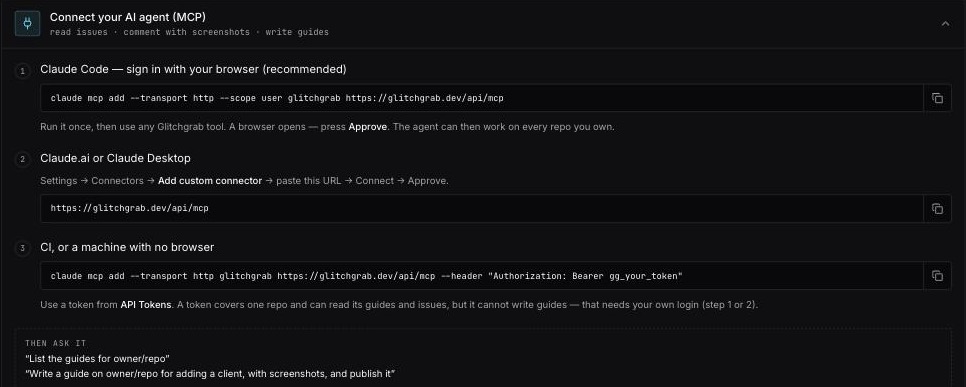
Claude Code: sign in with your browser (recommended)
Run once:
claude mcp add --transport http --scope user glitchgrab https://glitchgrab.dev/api/mcp
The first time the agent uses a Glitchgrab tool, a browser opens on Connect <app>. It shows who you are signed in as and what the agent will be able to do. Press Approve.
--scope user makes it available in every project on your machine. Leave it out to add it to the current project only.
Claude.ai or Claude Desktop
Check whether it is already there first. Claude keeps one connector per URL for the whole organisation, so adding https://glitchgrab.dev/api/mcp a second time is refused rather than repaired.
- Open the connectors list: on Claude.ai it is Customize → Connectors (older builds and Claude Desktop put it under Settings → Connectors). Open the Yours tab.
- If a Glitchgrab connector is listed, you do not add anything:
- a ✓ next to it means it is already connected — nothing to do;
- a Connect or Reconnect button means press that, then Approve on the Glitchgrab page;
- open the connector to see its tools, and use its three-dot menu → Refresh tools list if a new Glitchgrab tool is missing.
- If it is not listed, press Add → Add custom connector, paste
https://glitchgrab.dev/api/mcp, press Connect, then Approve on the Glitchgrab page.
QA testers
A QA tester connects the same way, with their own tester sign-in — no GitHub account needed.
- In the same browser, sign in to Glitchgrab as a tester (your magic link, or Tester on the sign-in page and the SMS code).
- Press Connect on the Glitchgrab connector (steps above).
- The Glitchgrab page says Signed in as <you> · QA tester and lists your projects. Press Approve.
The agent gets these tools on the projects you are assigned to: list_repos (your projects), create_issue (file an issue into one or several of them — it shows in your Reported list), begin_page_capture (screenshot the page from Claude chat with Claude in Chrome), create_image_upload_url, upload_image and begin_image_upload / append_image_chunk / finish_image_upload (the screenshots that go on those issues), list_calls, get_call (recorded calls, transcripts and summaries) and get_reports (the bug reports you filed). It cannot change or delete anything.
No project assigned to you yet? The page says so and has no Approve button — ask the project's owner to add you to it, then press Connect again.
CI, or a machine with no browser
Use a repo token (see Create an API token):
claude mcp add --transport http glitchgrab https://glitchgrab.dev/api/mcp \
  --header "Authorization: Bearer gg_your_token"
Sign-in, token or server key
| Browser sign-in | QA tester sign-in | gg_ SDK token | ggc_ server key | |
|---|---|---|---|---|
| Repos | every repo you own | the projects you are assigned to | only the token's repo | only the key's project |
| Guides | read and write | no | read published guides only | read and write |
| Recorded calls | the calls you can open on Calls | calls on your projects | no | no (over MCP) |
| Reports, issues | yes | only the reports you filed | yes | no |
File issues (create_issue) | yes | into your projects | no | no |
| Search Console tools | yes | no | no | no |
| Where from | your own machine | your own machine | CI, servers | your own server |
A gg_ token ships in your app's JavaScript, so it can never write guides, file issues over MCP or reach call recordings.
For guides and calls, each project has one secret server key (ggc_…), issued on API Tokens → Server keys:
- Your server can use it to write guides (see Write guides from your own server).
- Your admin panel can use it to show calls you shared with the client (see Share a call with your client). This works through
glitchgrab/server, not MCP.
Over MCP, a server key reaches the project's guide tools only.
What the agent can do
| Tool | Does |
|---|---|
list_repos | Your connected repos |
get_reports | Recent reports, filterable by repo and status |
create_issue | File an issue into one project or up to 10 at once. Each project gets its own GitHub issue, each commented with links to the others (only between projects of the same company). Answers with every issue's number, link and status. Comes with a screenshot of the page, the problem spot ringed in red. A screenshot is required: without one nothing is filed |
begin_page_capture | Screenshot a page from Claude chat in a second or two. Needs Claude in Chrome: Claude opens the page in your own Chrome and runs a short snippet that draws the screen, circles the elements Claude names and uploads the picture itself. No image data passes through the chat. One ticket = one screenshot, good for 10 minutes. A site with a strict security policy (GitHub, for one) answers ok:false and Claude falls back to begin_image_upload |
get_issue | Read a GitHub issue and its comments |
comment_on_issue | Comment on an issue as the Glitchgrab app |
create_image_upload_url | Upload a screenshot and get a public link that renders even on private repos |
upload_image | The same, for agents that cannot reach the upload link: the screenshot is sent inside the tool call (PNG, JPEG or WebP, up to 3 MB) |
begin_image_upload → append_image_chunk → finish_image_upload | The same again in slices, for a bigger picture or one the agent only sees in the browser (Claude in Chrome). Finish returns a cdn.glitchgrab.dev link; location and camera data are removed from the picture |
list_guides / get_guide | Read your guides |
save_guide / delete_guide | Create, update (by slug) or delete a guide |
list_calls | Recorded calls you can open: title, date, length, who attended, transcript status, one-line summary, and whether the call is shared with the client |
get_call | One call in full: audio links, transcript, summary with timestamps, and the screenshots taken during the call |
get_indexing_status, list_not_indexed_pages, request_reindex | Google Search Console |
It cannot close issues, push code, or change your account.
Filing issues
- Claude asks which projects first — it lists them with
list_repos. Name them byowner/name. - Claude opens the page, takes a screenshot and marks the wrong spot; Glitchgrab draws the red ring. Several screens or states get several screenshots (up to 6). If it can't reach the page (behind a login it doesn't have, a link it can't open), it asks you for a screenshot instead of filing without one.
- In Claude chat with Claude in Chrome, Claude opens the page, circles the problem and files the issue in seconds, with no image data typed into the chat.
- Each result says
CREATED,DUPLICATE(the same thing was already open, so it was added there as a comment),QUEUED(GitHub access to that repo was lost; it is filed when access returns) orFAILEDwith the reason. One project failing does not stop the others. - The issue says who asked for it and that it was filed through Claude.
- Claude always picks which model should fix it, and the issue gets that
model:label straight away:model:sonnetfor a small change the issue fully spells out (a wording or look change, a button that does nothing, one wrong rule with the right one stated),model:opuswhen the fix needs decisions (something new, several asks, permissions, money, stored data). To choose yourself, say "use sonnet" or "use opus". - Up to 60 issues an hour per person.
Call recordings
get_callgives links, not files. They work for 15 minutes, so the agent should download the audio straight away (curl -o call.webm "<url>") or ask again.- A call recorded by the bot has one audio track,
call. A call recorded with the extension has two:client(everyone else on the call) andrecorder(you). - Screenshots come a page at a time; an hour-long call has around 300. Ask for more with
framesOffsetandframesLimit. - The agent sees the same calls you see on Calls: projects you own, were given access to, or are assigned to as a QA tester. Being in the org is not enough.
Try it
Ask the agent:
- "List my Glitchgrab repos."
- "File this as a feature request in owner/web and owner/api: weekly email of merged changes every Sunday."
- "Read issue 123 on owner/repo and summarise what the reporter saw."
- "Get yesterday's call on owner/repo and list everything the client asked for, with timestamps."
- "Write a guide on owner/repo for adding a client, with screenshots, and publish it."
Troubleshooting
- "A connector with this URL already exists in your organization": that is Claude refusing a duplicate, not a Glitchgrab error — the connector is already there, possibly added by someone else in your organisation or by you under another name. Close the dialog, open Yours in the connectors list and use the Glitchgrab row that is already there: ✓ means it is connected and you are done, otherwise press Connect and Approve. Adding the same URL again can never work.
- The browser never opens: run any Glitchgrab tool once. The sign-in starts on first use.
- "Can't connect" page: the connection request was not recognised. Open the connector and press Connect again. Only if that keeps failing, use its three-dot menu → Remove, check it is gone from the Yours list, and then add the URL again — re-adding before the old one is gone is what produces the "already exists" error above.
- It says connected but the agent has no Glitchgrab tools: open the connector and use its three-dot menu → Refresh tools list. Removing and re-adding is not needed.
- Claude says Glitchgrab cannot create issues: it is using the tool list from before
create_issueexisted. Open the connector → three-dot menu → Refresh tools list (or disconnect and connect again), then ask again in a new chat. - "model is required": Claude is using an older tool list that did not ask for a model. Refresh tools list as above; Claude then picks sonnet or opus by itself.
- The screenshot upload fails with "CONNECT tunnel failed" or a 403 (common in Claude Code on the web): the agent's sandbox blocks the upload link's host. Ask it to use
upload_imageinstead, which sends the picture through the Glitchgrab connection itself. Tool not there? Refresh tools list as above. - "A screenshot is required" although Claude had the page open in Chrome: a screenshot in Claude in Chrome is only a picture the agent sees. Ask it to use
begin_page_capture, orbegin_image_upload(in slices) if the site blocks it. Tool not there? Refresh tools list as above. begin_page_captureanswers "Could not load the Glitchgrab capture script": the site's security policy blocks it. Claude should fall back tobegin_image_upload. "This capture ticket was already used" means each ticket takes one screenshot; Claude asks for a new one.- "Not a project you can file into": that project is not yours, or (for a tester) not assigned to you. Ask the agent to list your repos, or ask the project's owner to assign it.
- A tester's connect lands on the dashboard: you signed in with the WhatsApp link in the middle of connecting. Press Connect in Claude again — you are signed in now, so the Approve page opens. Signing in with the SMS code on the Tester tab returns to it by itself.
- A tool says it needs your own login: you connected with a
gg_token or a server key, and that tool needs the browser sign-in. Call tools andcreate_issuealways do. - A tool says it is not available to a QA tester: a tester reaches their projects' calls, their own reports and filing issues only. Anything else needs the project owner's sign-in.
- A tool says it is not available to a server key over MCP: a server key reaches guides only. Connect with your browser sign-in for everything else.
- An audio link stopped working: it expired after 15 minutes. Run
get_callagain. - Using Claude Desktop with a local server instead? See Use the local Glitchgrab MCP server.