Getting started
Connect your GitHub org
Sign in, connect a GitHub organisation, install the GitHub App and sync new repos so reports become issues
Steps checked September 12, 2026
Glitchgrab works on a GitHub organisation at a time. Connecting the org brings in its repos; installing the Glitchgrab GitHub App on a repo is what lets Glitchgrab open issues there.
Before you start
- A GitHub account that belongs to at least one GitHub organisation.
- Admin rights on that org if you want to install the GitHub App yourself.
1. Sign in and connect the org
- Go to glitchgrab.dev and sign in with GitHub.
- The first time, you land on Connect your GitHub Org. Under Your GitHub Orgs, click the org you want.
- Press Connect <your org>. It shows Connecting… while repos are copied in.
- You will see Org connected! N repos synced. and the org's dashboard opens.
No orgs listed? You see No GitHub orgs found. You need to be a member of at least one org. Join or create a GitHub org first — personal repos are not connected.
2. Find your repos
Open Repos in the left sidebar. The top line counts the repos you can see and how many are tracked.
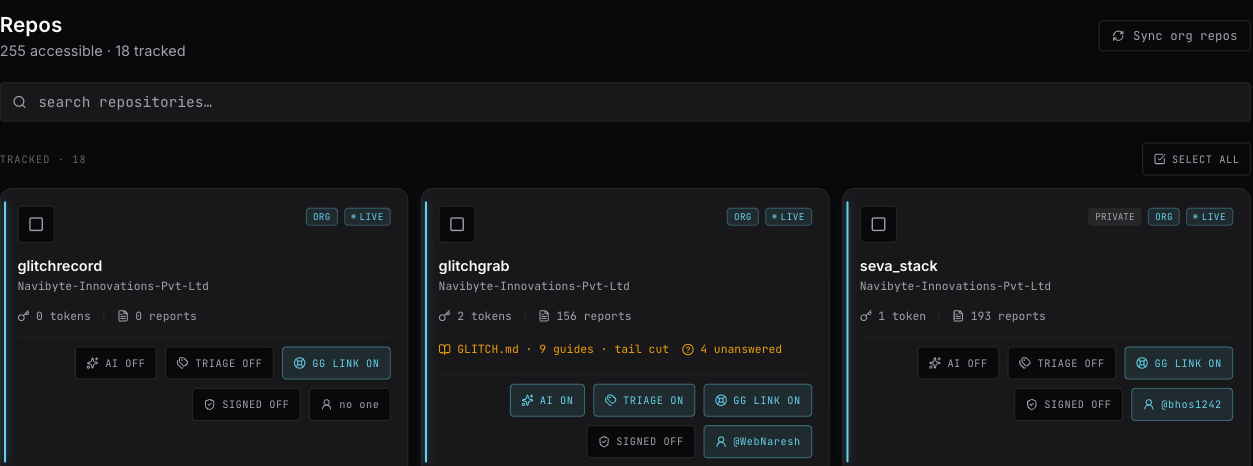
- Tracked repos are the ones Glitchgrab works with. Each has a card with its tokens, report count and settings.
- Not tracked · N lists the rest, dimmed.
- Use search repositories… to find one.
3. Install the GitHub App
Each card shows a status chip at the top right:
- LIVE — the GitHub App is installed. Reports on this repo become issues.
- not installed — reports are accepted but no issue is created.
When any tracked repo is missing the App, a banner reads One or more tracked repos need the GlitchGrab GitHub App installed to create issues. Press install app, and on GitHub:
- Choose your organisation.
- Pick All repositories, or Only select repositories and tick the ones you want.
- Press Install.
GitHub sends you back to Glitchgrab. There is no confirmation message — refresh Repos and check the chip now says LIVE.
The install link is valid for 10 minutes. If you took longer, press install app again.
Installing the App straight from GitHub's App page (instead of through that link) does not link the repos to your org. Always start from the install app link in Glitchgrab.
4. Pick up new repos later
Created a new repo in the GitHub org? Press Sync org repos at the top right of Repos. You will see Synced N org repos and the page reloads. Only the org owner can sync, and only repos in the GitHub org are brought in.
Who sees what
- Owners (GitHub org admins) see every tracked repo, every setting and every report.
- Members — anyone else from the GitHub org who signs in — are added automatically and see a read-only list of repos they can access on GitHub. See Add team members and give them access.
Next steps
- Create an API token for a repo.
- Add Glitchgrab to your Next.js app.
Troubleshooting
- No repos found. Make sure your GitHub token has repo scope. — sign out and sign in again, accepting GitHub's repo permission.
- A repo is missing — press Sync org repos. Personal (non-org) repos are never brought in.
- "GitHub App not installed on this repo — reconnect in Connect Repo to grant access" — this message is out of date; there is no Connect Repo screen. Install the App from the banner's install app link as in step 3.