Reports and issues
Find and manage reports
Search and filter reports, read a report card's status and source, send fixes to QA and dismiss failed reports
Steps checked September 12, 2026
Every report — from the SDK, the dashboard chat, a QA tester, the MCP server or automatic error capture — lands on Reports. From there you can find one, see whether it became a GitHub issue, and send fixes to QA.
Owners only. Members who open Reports are sent to Chat.
Open it
Open Reports in the left sidebar. It has two tabs:
- PRODUCT_ISSUES — reports about your products, from your users, testers and error capture.
- MY_REPORTS — reports you filed yourself.

Find a report
- ~/ grep reports… — search the text.
- all repos — narrow to one repo (shown when you have two or more).
- TIME: ALL, TODAY, 7D, 30D.
- STATE: ALL, OPEN, CLOSED — the state of the GitHub issue.
The count at the right shows how many match. no reports match your filters means loosen a filter.
Read a report card
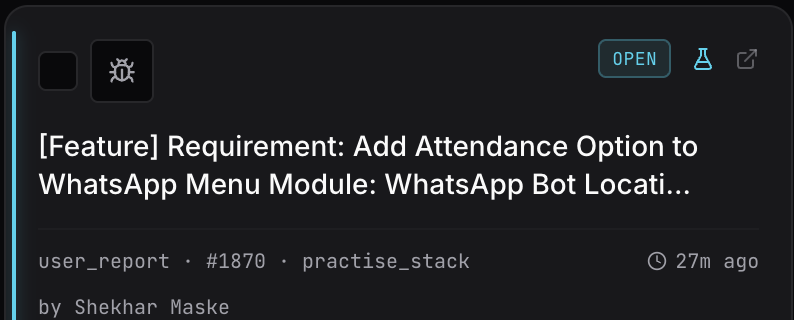
- Top right chip — the GitHub issue's state: OPEN, CLOSED, or deleted if the issue was removed on GitHub.
- A report with no issue shows its own state instead:
- duplicate — the reporter confirmed it was an existing issue; their words were added to that issue as a comment.
- failed — the issue could not be created. The reason is shown on the card as ↳ reason.
- no_issue / pending — accepted but not on GitHub (yet).
- Title — the first line of the report.
- Source — where it came from:
user_report(your app's report button),auto_capture(an error your app hit),dashboard,tester,mcp,note, orabout_glitchgrab. - #number · repo · age and by <name> — the issue number, the repo, how long ago, and who reported it.
- Under that, as the owner, you see where the report came from on the network: its IP address, approximate location and how many other reports came from the same address. This is never written into the GitHub issue.
Open the issue on GitHub from the arrow icon at the top right of the card.
Why an error did not appear
Automatic error capture is de-duplicated so a crash loop cannot flood your repo:
- The same error on the same page within 24 hours is not reported again.
- While a GitHub issue for that error is open, nothing new is filed for 7 days.
So a missing card for a repeating error usually means it is already on its open issue. See A report did not become a GitHub issue for the other causes.
Send a fix to QA
When a fix is ready for testing:
- Press the flask icon on a card, or
- tick several cards and press send to qa.
You will see Sent to N testers, or Already sent — no new testers if they already have it. Testers see it in To verify on their dashboard. See Add a QA tester.
Dismiss a failed report
A failed card has dismiss. Press it to clear the card — Report dismissed. There is no retry button on this page: fix the cause (usually the GitHub App — see A report did not become a GitHub issue) and ask the reporter to send it again, or file it yourself from Chat.