Calls
Read a call's summary and filter its points by type
See what a recorded call was about, and filter what was said into bugs, feature requests, improvements, feedback, questions and action items
Steps checked October 9, 2026
Every recorded call gets a short summary once its transcript is ready, so you can see what the call was about without reading the transcript. The summary sorts what was said into types, and you can filter by type.
Before you start
- The call's transcript is ready (see Read a call's transcript).
- Project owners and QA testers both see the summary. Only the project owner can press Split by type on older calls.
See what clients asked for across all calls
- Open Calls (QA testers: Calls in the dashboard sidebar). At the top, Client requirements lists what clients asked for on every call, newest call first, under each call's name and date.
- Each call shows its first 3 requests. Press +N more to see the rest of that call's requests. If there are more than 3 calls, press Show all N calls at the bottom to see the older ones.
- Press a time on any line (for example 01:35) to open that call with the player set to that moment, then press play.
A call joins this list once its summary has been written. Calls where the client asked for nothing are left out.
Open the summary
- Open Calls and click the call.
- Under the audio player, find Summary. It starts with a few sentences on what the call was about.
If it says Being written — a call is summarised once it finishes transcribing, reload in a minute.
If it says Summary delayed (in an amber box), the summary could not be written yet. It tries again on its own, up to 3 times, and appears here once written; the transcript below is already complete. If it is still missing after that, the project owner presses get summary + issues on the call to write it. Project owners: a backup AI writes the summary when the main one is out of credit, so a long delay usually means both have failed.
File a client requirement as a GitHub issue
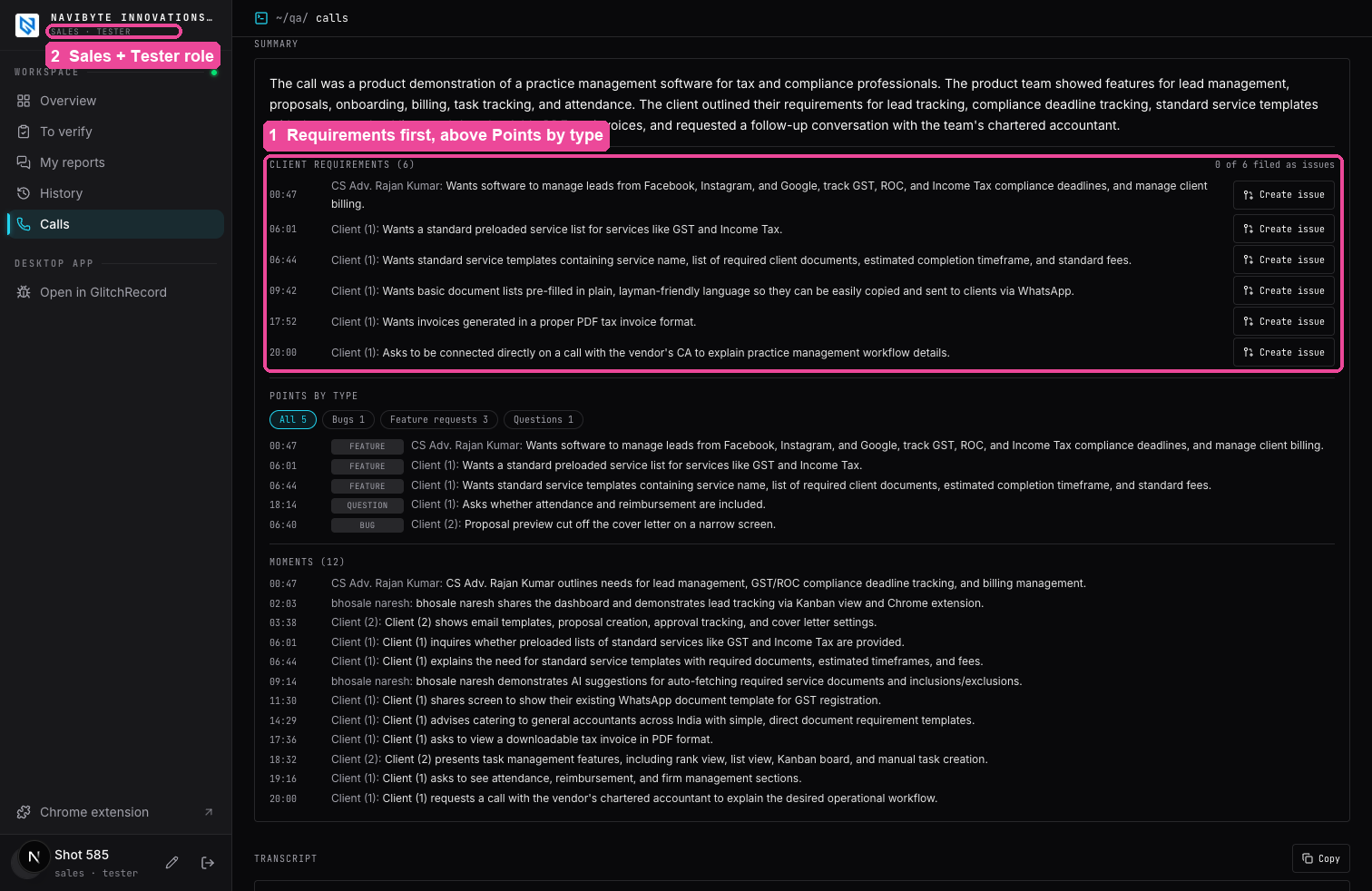
Right under the overview, Client requirements lists what the client asked for on this call, with the time each was said. The right-hand side shows how many are already filed (2 of 6 filed as issues).
- Press Create issue on a line (Filing…).
- You will see Filed as #N, and the line now shows its issue number instead of the button. Press the number to open the issue on GitHub.
The issue carries the client's own words, the time they said it and the call's id, so a developer can read the whole transcript with the Glitchgrab MCP (get_call <id>) without asking what the client meant.
A requirement is filed only once. Pressing it again, in another tab or from WhatsApp, gives back the same issue (Already filed as #N).
Project owners, members and sales reps on the project can file. A QA tester who is not a sales rep sees the list without the button.
Filter the points by type
Below the requirements, Points by type lists every point from the call in call order. Each line shows its type, the time, and who said it.
The chips above the list filter it:
- All — every point
- Bugs — something that exists and does not work
- Feature requests — something asked for that does not exist yet
- Improvements — a change asked for to something that already works
- User feedback — an opinion about the product, with no specific ask
- Questions — something someone asked
- Action items — something one side agreed to do after the call
Press a chip to see only that type. Each chip shows how many points it has. A chip appears only for types the call actually has.
When the call's audio is stored, press the time on any line to play the call from that moment.
Moments below the list is the call's timeline: what was shown, explained or decided, in order.
Calls summarised before points had types
Older calls show Client requirements but no Points by type, with the line Summarised before points were sorted into bugs, feature requests, questions and more.
If you own the project:
- Press Split by type (Sorting…).
- You will see Points split by type, and Points by type appears. After that, everyone on the project, QA testers included, sees the chips.
If the call had nothing to sort, you will see Nothing on this call to sort by type and the button goes away. You can only press it once per call.
Next
- Turn a call into GitHub issues — draft issues from the whole call and correct them by chatting before filing.