Calls
Read a call's transcript
Find a recorded call, understand its recording and transcript status, read speaker names, retry a failed transcript, and delete one call or many at once
Steps checked November 4, 2026
Every recorded call gets its own page with the audio, a transcript and the issues drafted from it. This guide covers finding a call, reading where it is in processing, the transcript itself, and deleting calls.
Before you start
You see a call when you own its project or have Context access to it. A call not filed to any project is visible only to the person who recorded it.
Find the call
Open Calls in the left sidebar. The page has three tabs:
- Calls — send the bot to a call, and every recorded call. It opens here.
- Schedule — upcoming calls from Google Calendar and the auto-record switch.
- Booking — demo booking settings.
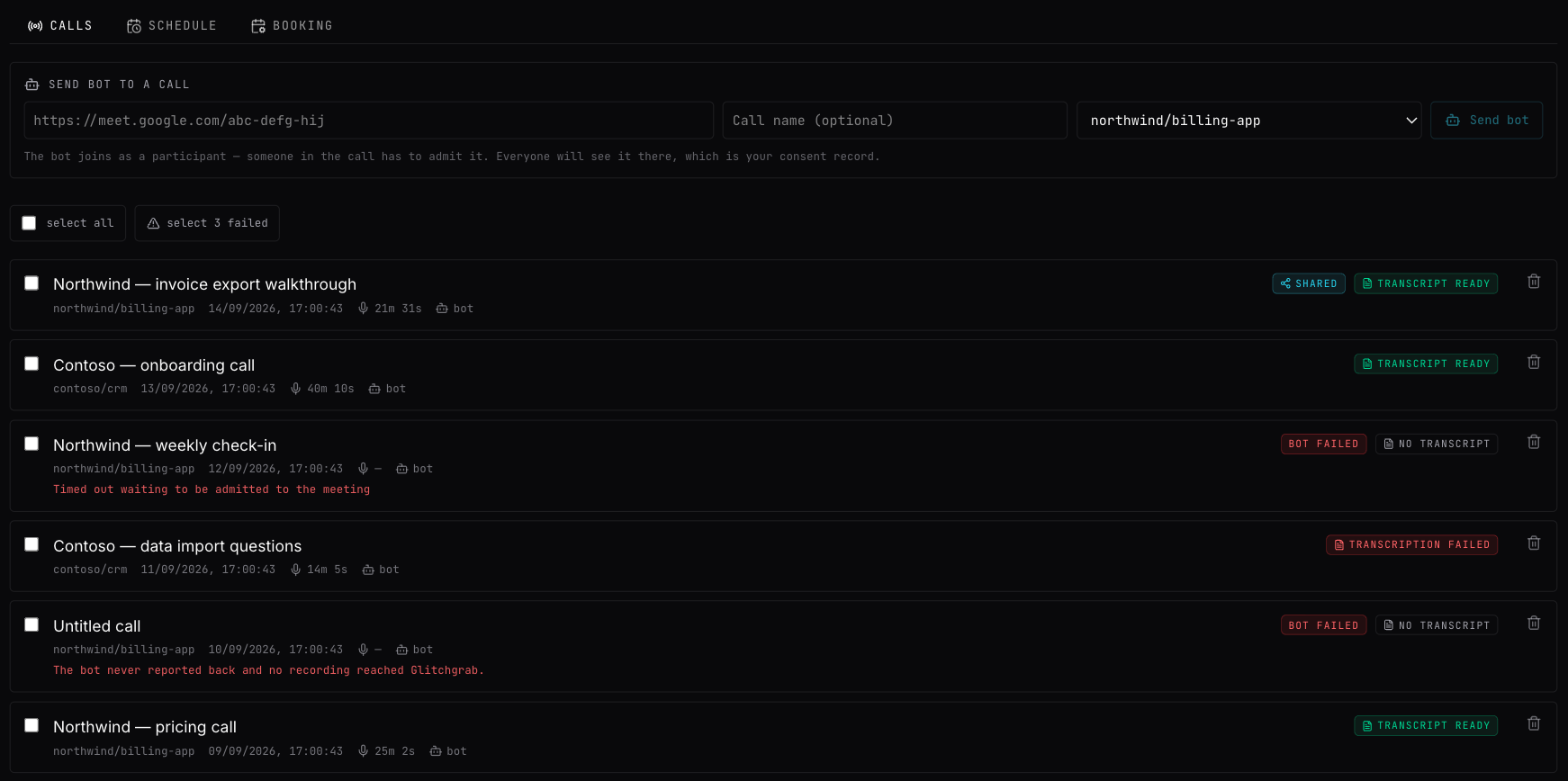
Each call shows its badges.
Recording (while the bot is involved), in order:
- sending bot…
- bot is joining…
- admit the bot in Meet — someone in the call must press Admit
- bot is recording
- saving recording…
- nothing — it is done
- bot failed — see If the recording failed below
Transcript:
- no transcript — not started yet
- transcribing…
- transcript ready
- transcription failed
A shared badge means the call is shared with your client (see Share a call with your client).
Show one product's calls only
When your calls belong to more than one product, a Product dropdown sits at the top of the Calls tab, set to All products. Choose a product and both the list of recorded calls and Client requirements show only that product's calls. Choose All products to get everything back.
Your choice stays when you open a call and press all calls (or your browser's Back) to return to the list. If the chosen product has no calls, the list says No calls for … with a show all products button.
A call with no project
It shows no project yet — file it. Pick the project and it saves (filing…). Until a call has a project, nobody else can see it and you cannot create issues from it. It only appears under All products.
Open a call
Click the call. At the top: all calls to go back, the title (or Untitled call), Client access (project owners only), and the Call panel. The panel plays the call's audio with still pictures in time with it. While someone shares their screen, the picture is the shared screen alone, so its text is readable (on newer calls); the rest of the time it is the whole Meet window. Press full size on the picture to open it at its original size. It is not video: the label above the picture says how often the picture changes (about every 6 seconds; every 12 seconds on calls recorded before 23 Oct 2026). A loading the recording… spinner shows on the picture while the audio catches up.
The transcript
- While it runs: Transcribing… A one-hour call takes a few minutes. This page refreshes itself. You can leave and come back.
- When ready, each line shows the speaker and the time. Press Copy to copy the whole transcript (Transcript copied).
Speaker names
The bot hears everyone else in the call on one audio stream. It separates the voices, and names them from Meet's participant list and captions:
- In a one-to-one call, the other person's Meet name is used.
- When it cannot tell who is who, voices show as Client (0), Client (1) and so on.
The words always come from the audio; names only come from Meet.
If transcription failed
The page says Transcription failed. and The audio is still stored — nothing was lost.
Press retry transcription (restarting…). You will see Transcription restarted — this page updates when it's ready.
- This call is already being transcribed — it is already running; wait.
- No audio is stored for this call — there is nothing to transcribe — the recording never uploaded.
If the recording failed
The bot could not record this call., with the reason. The usual causes: nobody pressed Admit within 10 minutes, the Meet link was wrong, or Google changed Meet's screens. Next time, send invites from your own calendar so the bot is let in automatically (see Record calls automatically with Google Calendar).
Delete calls
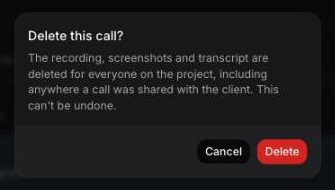
Deleting a call removes the recording, the screenshots and the transcript for good — for everyone on the project, and from your client's admin panel if the call was shared. It cannot be undone.
One call
- In the list, press the trash button at the end of the call's row, or
- on the call's page, press delete call.
Confirm Delete this call? with Delete. You will see Call deleted.
Many calls at once
Useful for clearing out calls the bot never managed to record.
- On the Calls tab, press select N failed to tick every call that says bot failed or transcription failed — or tick calls yourself, or select all.
- A bar appears under the list: N selected.
- Press delete N, then Delete in Delete N calls?.
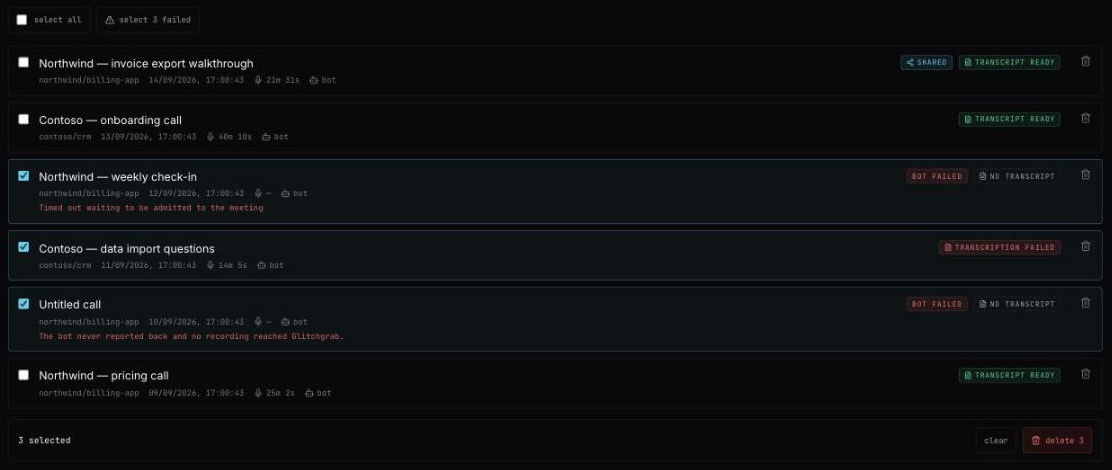
You will see N calls deleted. clear unticks everything. Up to 50 calls at a time.
Messages
- The bot is still in this call — delete it after the call ends — the call is being recorded right now. Other ticked calls are still deleted; this one is left.
- N not deleted — … — some calls could not be deleted, with the first reason.
- Could not delete the recording — try again — nothing was removed; try again.
- QA testers can delete only calls they recorded themselves, from the call's page — You can only delete calls you recorded.
Next
- Turn a call into GitHub issues — draft issues from what the client asked for.
- Share a call with your client — show the recording in your own admin panel.