Getting started
Read your org overview
What every card on the Overview page means — reports today, failed retries, open issues, PRs, team, triage, issues closed and SEO — and a daily check
Steps checked October 26, 2026
Overview is the first page an owner sees: one screen showing whether anything needs you today — new reports, failures, open issues, who is active, what shipped, and how your sites are doing in Google.
Who can see it
Owners. Members who open it are sent to Chat.
Open it
Press Overview at the top of the left sidebar.
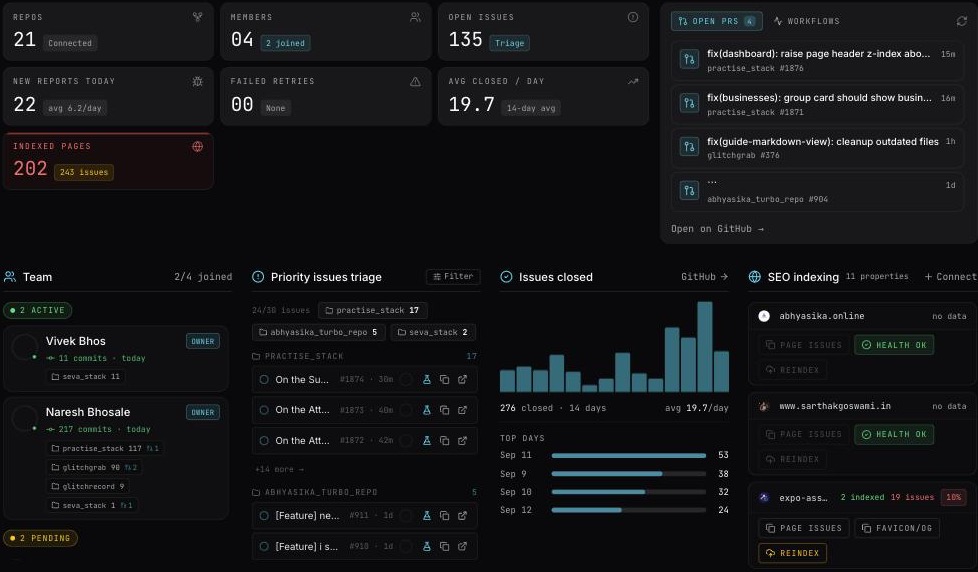
The numbers across the top
| Card | What it tells you |
|---|---|
| Repos | How many repos are connected |
| Members | How many people are in the org, and how many have joined (signed in at least once) |
| Open issues | Open issues across your repos — Triage when there is work to sort, Clear when not |
| New reports today | Reports received today, with the daily average |
| Failed retries | Reports that could not become issues — None when there aren't any. See A report did not become a GitHub issue |
| Avg closed / day | Issues closed per day over the last 14 days |
| Indexed pages | Pages Google has indexed across your Search Console properties, with the number of indexing problems — see Track Google indexing with Search Console |
Open PRs and Workflows
The panel on the right has two tabs:
- Open PRs — open pull requests across your repos, newest first. No open PRs — all clear. when there are none.
- Workflows — your GitHub Actions runs.
Press Open on GitHub to see the full list there.
The four cards
Team, Issue triage, Issues closed and SEO indexing are always the same height. When a list is longer than its card, it scrolls inside the card, and each card's link sits at the bottom.
Team
Who is active today, who is still pending, and your testers.
- Each person is one line: their commits today and how many repos they worked in. Hover the repo count to see commits, PRs and branches per repo.
- A pending person has a dashed outline and an envelope button to invite them by email.
- Each tester shows Today: N tested · M left to test — how many fixes they verified today (IST, the same number they see on their own Today card) and how many are on their To verify list right now, in amber when any are waiting. Below it, the last 30 days, e.g. 30 days: 655 tested, 649 pass, 6 fail. You don't need to open their QA link to see either. QA link copies their sign-in link. The four testers who tested the most are shown; the rest are under +N more.
- Manage members opens Members.
Issue triage
The open issues that most need attention, grouped by repo.
- Each group heading shows the repo and how many issues it has. Click it to show only that repo; click it again to show every repo.
- Press Filter to choose Assignment (all / assigned / unassigned) and a Repo (type in Search repos…, or All repos). The number on the button is how many issues the filter is showing.
- Each issue shows its title on up to two lines, then its number, age, comments and assignees. Click the issue to open it on GitHub. Hover it for shortcuts to send it to QA or copy its link.
- No assigned issues. / All issues are assigned — great! / No open issues — all clear. depending on the filter.
Issues closed
A bar chart of issues closed each day for the last 14 days, the total, the daily average, and your Top days. GitHub → opens the closed issues there; Full analytics → opens Analytics.
SEO indexing
One row per Search Console property. It shows how many pages have indexing problems, or how many are indexed when there are none. When a page is not indexed, the row adds two shortcuts: Fix pages copies a prompt for fixing those pages, and Reindex asks Google to crawl them again. SEO details → opens SEO.
Contributions
At the bottom, a heatmap of activity over time — from Less to More.
A 30-second daily check
- Failed retries reads None — if not, fix the cause first.
- New reports today — anything unusual against the average?
- Issue triage filtered to unassigned — give each an owner.
- Open PRs — anything waiting on review?