AI features
Require signed-in users for AI features
Use a signing secret and signSession so only your logged-in users can use the AI assistant, AI enhance and voice input
Steps checked September 12, 2026
Your gg_ token is in your app's JavaScript, so anyone can copy it. Signed users makes the AI features work only for people your own server has signed in: your backend signs each logged-in user's id with a secret, and Glitchgrab checks that signature before serving the AI.
Use it when you have turned on the AI assistant and want to be sure only your real users spend its budget.
What it protects
With Enforce on, an unsigned caller loses:
- the AI report assistant (Describe it with AI)
- AI enhance
- voice input
- the "already reported?" check
Report filing is never blocked. The plain report form, glitchgrab/server, the MCP server and CI all keep filing. Nobody loses the ability to tell you something is broken.
Before you start
- You own the repo.
- Your app has a server that knows who is logged in (a server component, API route or middleware).
- The
glitchgrabpackage is installed and the provider receives asession(see Add Glitchgrab to your Next.js app).
1. Generate a secret
- Open Repos and find the repo's card.
- Press SIGNED OFF. The signed_users dialog opens.
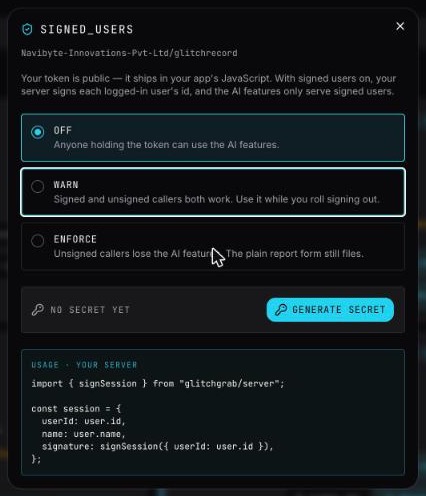
- Press Generate secret.
- Copy the line it shows —
GLITCHGRAB_SIGNING_SECRET=ggs_…— into your server environment. It is shown once, and closing the dialog hides it for good.
Never put it in a NEXT_PUBLIC_ variable. A secret in the browser bundle protects nothing.
2. Sign the session on your server
// app/layout.tsx — a server component
import { signSession } from "glitchgrab/server";
import { auth } from "@/lib/auth"; // your auth library
import { Providers } from "./providers";

export default async function RootLayout({ children }: { children: React.ReactNode }) {
  const user = (await auth())?.user;

  const session = user
    ? {
        userId: user.id,
        name: user.name ?? "User",
        email: user.email,
        // Reads GLITCHGRAB_SIGNING_SECRET from the server environment.
        signature: signSession({ userId: user.id }),
      }
    : null;

  return <Providers session={session}>{children}</Providers>;
}
Pass that session to GlitchgrabProvider in your client Providers component. Deploy.
3. Roll it out: Warn, then Enforce
Back in the signed_users dialog:
| Mode | Signed user | Unsigned caller |
|---|---|---|
| OFF | everything works | everything works |
| WARN | everything works | everything works — use this while you roll signing out |
| ENFORCE | everything works | AI features hidden; the plain report form still files |
- Pick WARN first. You will see Signed users: warn — unsigned callers still work. Nothing changes for anyone yet.
- Check your app in production: the assistant still works for a logged-in user.
- Pick ENFORCE. You will see Signed users enforced — unsigned callers lose the AI features.
Rotating the secret
Press Rotate secret. Glitchgrab warns that rotating breaks every signature your server already issued. Press Rotate anyway, put the new secret in your server env and redeploy. Until your pages render again with the new secret, signed users briefly count as unsigned — on ENFORCE that means no AI for a few minutes, while reports keep filing.
Good to know
- A signature lasts 24 hours by default. Build it on each request (as above) so it refreshes. Change it with
signSession({ userId, ttlSeconds }). signSessionthrows if the secret oruserIdis missing — on purpose, because that is a deploy mistake you want to see. The rest of the SDK never throws.- Logged-out visitors are unsigned. On ENFORCE they get the plain form only.
Messages
- Generate a signing secret first — you picked WARN or ENFORCE before creating a secret.
- AI enhance isn't available here — the caller is unsigned and the repo is on ENFORCE.
- Secret rotated — update your server env — the old secret has stopped working.