Calls
Share a call with your client
Mark a recorded call as shared and show its recording, transcript and screenshots inside your own admin panel with the project's server key and glitchgrab/server
Steps checked September 15, 2026
After a client call, you can show that client the recording inside your own product, for example in your super admin panel, without giving them a Glitchgrab login. You choose call by call what they get to see.
Before you start
- You own the project the call is filed under. Team members with access can listen to calls but cannot share them.
- The call is filed to a project. A call showing no project yet — file it has to be filed first.
- Your admin panel runs on a server you control: a Next.js app with the
glitchgrabpackage, or any server that can make an HTTP request.
1. Share the call
- Open Calls and click the call.
- Under the title, Client access says Only people on this project can open it.

- Press share with client. You will see Shared with the client, and the button now reads shared with client.
Shared calls show a shared badge in the Calls list. Press the button again to stop sharing. You will see No longer shared, and your admin panel stops seeing that call at once.
Only shared calls ever leave Glitchgrab. Internal calls and prospect calls on the same project stay private, even after you create a key.
2. Get the project's server key
The server key is how your admin panel proves it may read this project's shared calls. There is one per project, and the same key writes the project's guides. If you already issued one for guides, use it here too.
- Open API Tokens in the left sidebar and switch to the Server keys tab. The no server key link (or server key, once one exists) in Client access on the call opens the same tab.
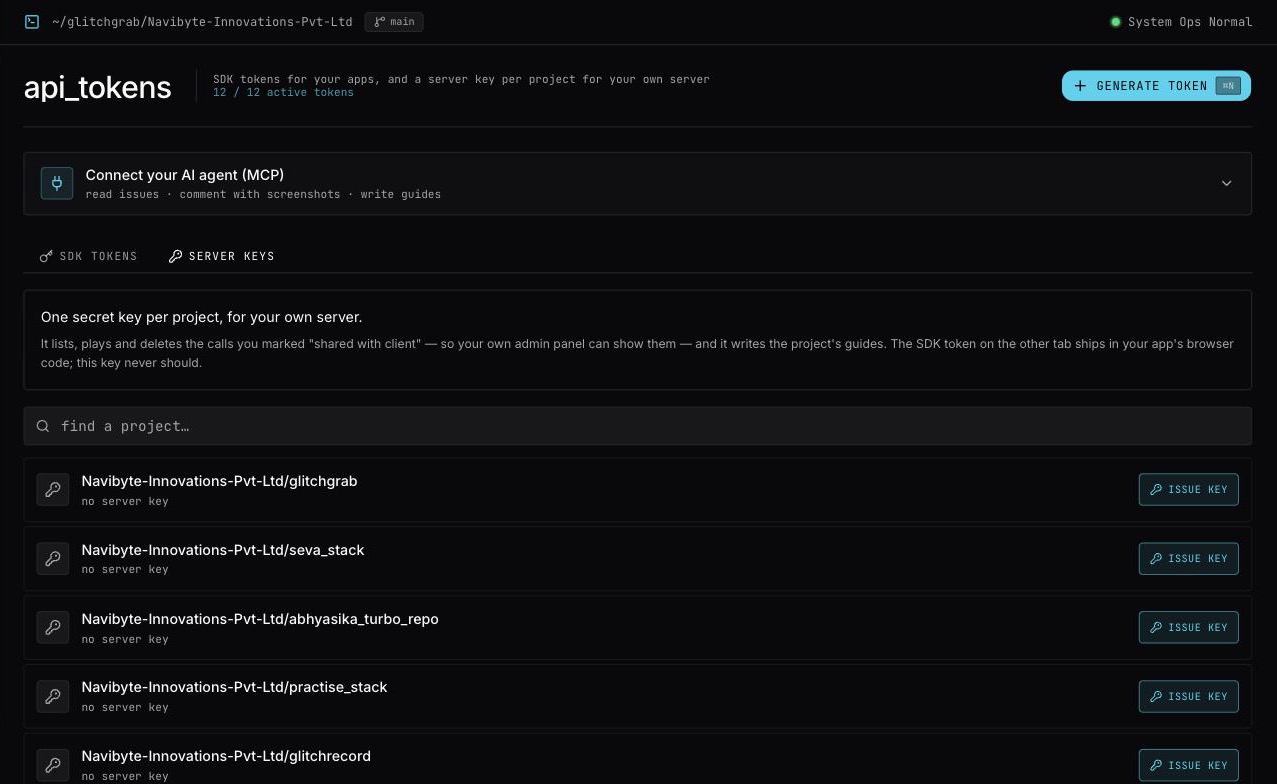
- Press Issue key on the project's row, then Issue key in the dialog. You will see Server key issued.
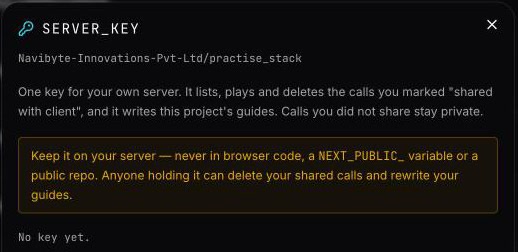
- Copy the
ggc_…key straight away. It is shown exactly once.
Keep it on your server: never in browser code, a NEXT_PUBLIC_ variable or a public repo. Anyone holding it can play and delete every shared call on the project, and rewrite its guides.
Lost it? Press Manage → Issue new key. The old key stops working immediately, for calls and guides alike (New key issued — the old one stopped working). To switch it off entirely, press Manage → Revoke → Sure? Revoke.
3. Show calls in your admin panel
Put the key in your server's environment:
GLITCHGRAB_CALLS_KEY=ggc_your_key
Then read the calls from a server component, behind your own admin sign-in:
// app/admin/calls/page.tsx
import { listCalls } from "glitchgrab/server";

export default async function CallsPage() {
  const calls = await listCalls(); // shared calls, newest first
  return calls.map((c) => (
    <a key={c.id} href={`/admin/calls/${c.id}`}>
      {c.title} — {c.overview}
    </a>
  ));
}
// app/admin/calls/[id]/page.tsx
import { notFound } from "next/navigation";
import { getCall } from "glitchgrab/server";

export default async function CallPage({ params }: { params: Promise<{ id: string }> }) {
  const { id } = await params;
  const call = await getCall(id);
  if (!call) notFound();

  return (
    <article>
      <h1>{call.title}</h1>
      {call.audio.map((a) => (
        <audio key={a.track} controls src={a.url} />
      ))}
      <p>{call.summary?.overview}</p>
      <pre>{call.transcript}</pre>
    </article>
  );
}
What you get back:
audio: a call recorded by the bot has one track,call. A call recorded with the extension has two:client(everyone else on the call) andrecorder(your side).transcriptandsummary: the summary'smomentscarrytMs, so you can start the audio at the moment something was said.frames: screenshots taken during the call, 50 at a time. Ask for more withgetCall(id, { framesOffset: 50 }).frames.totalsays how many exist.participants: names and emails from the call. Use the emails to show each customer only their own calls.
Audio and screenshot links expire after 15 minutes. Read the call when the page renders. Do not save the links in your database.
Not on Next.js? Call the API directly with the key:
curl https://glitchgrab.dev/api/v1/sdk/calls \
  -H "Authorization: Bearer ggc_your_key"

curl "https://glitchgrab.dev/api/v1/sdk/calls?id=<callId>" \
  -H "Authorization: Bearer ggc_your_key"
4. Delete a call from your admin panel
import { deleteCall } from "glitchgrab/server";

const result = await deleteCall(callId);
if (!result.deleted) console.log(result.error);
This deletes the recording, screenshots and transcript for good, in Glitchgrab too. It works only on shared calls. It never throws: a failure comes back as { deleted: false, error }.
Messages
- Only the project owner can share a call with the client: ask the project's owner to press share with client.
- File this call under a project before sharing it: pick the project on the call first.
- Calls need this project's server key (ggc_…), not the public SDK token: you sent the
gg_token. Use the server key. - Invalid server key: the key was replaced or revoked. Issue a new one. An old guides-only key (
ggw_…) also gets this, because it never reaches calls. - Call not found: the call is not shared, belongs to another project, or was deleted.
- The bot is still in this call — delete it after the call ends: wait for the call to end, then delete it.
- No server key — set GLITCHGRAB_CALLS_KEY (ggc_…):
deleteCallfound no key on your server. listCalls()returns an empty list: no call is shared yet, orGLITCHGRAB_CALLS_KEYis missing on the server.
Related
- The same key writes guides: see Write guides from your own server.
- An AI agent can read calls too, with your own login instead of a key: see Connect your AI agent to Glitchgrab (MCP).
- Reading and deleting calls in Glitchgrab: see Read a call's transcript.