AI features
Turn on the AI report assistant
Switch on AI assist for a repo so reporters get answers from your guides and GLITCH.md, and help writing clear reports
Steps checked October 26, 2026
The AI report assistant sits inside the report dialog. When someone reports a problem, it reads their screenshot and what they clicked, answers from your own notes and guides when the answer already exists, and otherwise helps them write a clear report. It never files anything by itself — the person always presses Send.
It is off by default, per repo, and only the repo owner can switch it on — it spends model budget on reports from people you don't know.
Before you start
- You own the repo.
- The repo has a GLITCH.md file — the assistant answers from it. See Write a GLITCH.md for your project.
- The GitHub App is installed on the repo (the card shows LIVE).
Turn it on
- Open Repos in the left sidebar.
- Find the repo's card. The switches are at the bottom.
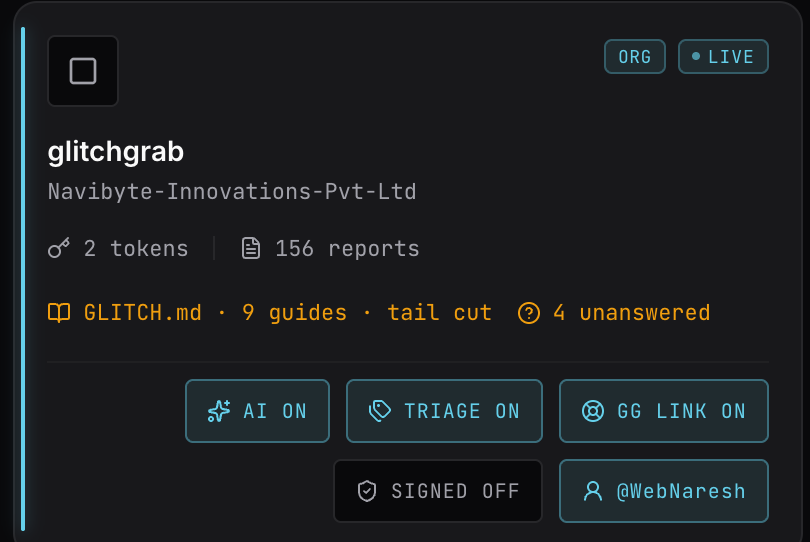
- Press AI OFF. It changes to AI ON and you see AI assist on — reporters can have the AI write their report.
Press it again to switch off: AI assist off — reporters see the plain form.
"Add a GLITCH.md to this repo first"
If the repo has no GLITCH.md, the switch refuses with:
Add a GLITCH.md to this repo first — the assistant answers from it. Without one it can only file reports, never answer.
Commit a GLITCH.md to the repo (see Write a GLITCH.md for your project) and press AI OFF again. The file is read fresh the moment you press it.
Read the card's status line
While AI is on, a line under the report count tells you what the assistant is working from:
- GLITCH.md · 9 guides — found, with the number of bullet points under your guides section.
- · tail cut — the file is longer than the assistant reads (about 80 lines). Trim it or the end is ignored.
- no GLITCH.md — can only file, not answer — the file was removed or never added. The link opens GitHub to create it.
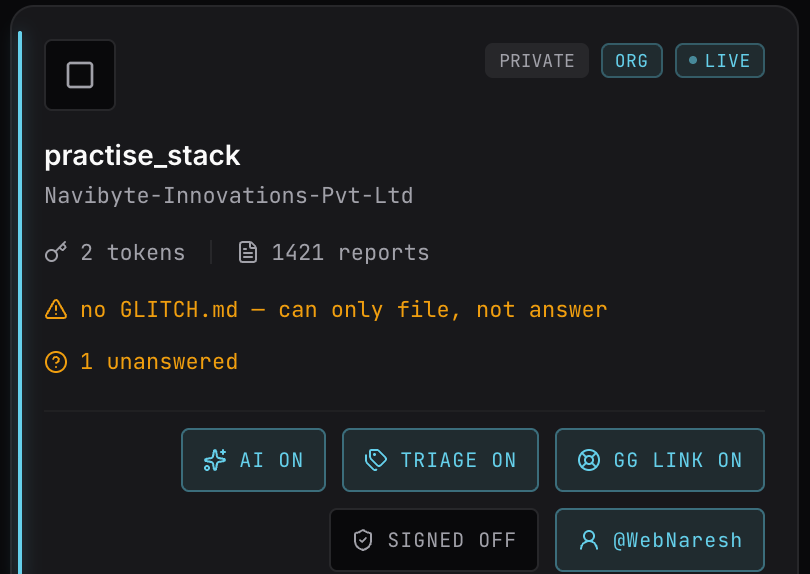
- N unanswered — questions reporters asked in the last 30 days that neither your GLITCH.md nor your guides could answer. Press it to see the topics.
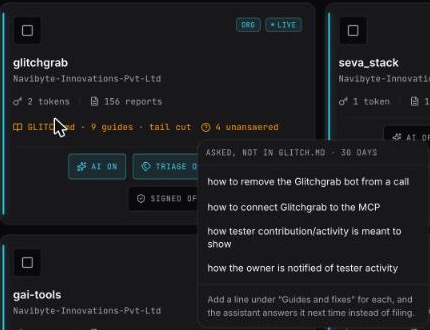
Each topic there is a guide worth writing. Add it under Guides and fixes in GLITCH.md, or write a guide on the Guides page, and the assistant answers it next time instead of filing a report.
What reporters see
With AI on, the report dialog opens straight into Describe it with AI. See What your users see when they report a bug for the full walkthrough. In short:
- If a published guide or your GLITCH.md already covers it, the assistant tells them how — with a link to the guide — and offers That worked / Still broken — report it.
- If it is already an open issue, it asks whether it is the same problem, and adds their words to that issue if they say yes.
- Otherwise it checks it understood them, then writes a draft they can edit and send.
- Write it myself switches to the plain form at any time.
Limits
- No monthly cap. Every report can use the assistant, however many your project gets.
- Only floods are stopped: 200 assistant replies an hour per project, and 60 an hour from one network using your app. Past either, reporters see The assistant is busy right now — try it again in a few minutes, or write your report below and send it as normal. The plain form still files, and the assistant is back within the hour.
- If the model is down, reporters see The assistant is unavailable — write your report below and send it as normal. Nothing is lost.
- A very long chat ends with This conversation has gone on long enough — send what you have and it will be filed.
Make it answer more
- Publish guides for the things people ask about (Guides in the sidebar). The assistant reads every published guide and links to the best match.
- Check N unanswered every week or two and write the missing ones.
- Keep GLITCH.md short and current — only the first ~80 lines reach the assistant.
Related
- Require signed-in users for AI features — stop a copied token using the assistant.
- Limit a token to your own websites.