Account
Upgrade or cancel your plan
Upgrade to Glitchgrab Pro with Razorpay, check your quota and renewal date, and cancel your subscription
Steps checked September 12, 2026
Billing is where you upgrade to Glitchgrab Pro, see your quota and renewal date, and cancel. Payments go through Razorpay.
Who can see it
Owners only. The subscription belongs to your account, not to the organisation.
Upgrade to Pro
- Open Billing in the left sidebar. On the free tier the header reads No active subscription · Free tier.
- The Glitchgrab Pro card shows ₹199 / mo and what is included:
- Unlimited repos
- 100 issues created / month
- Smart dedup & updates
- Screenshot analysis
- SDK auto-capture
- AI built in — zero setup
- Press Upgrade to Pro.
- Complete the payment in the Razorpay window.
- You will see Subscription activated! Refreshing... and the page shows your plan.
Secured by Razorpay · Cancel anytime.
See your plan
With an active subscription, Billing shows your plan and when it is active until.
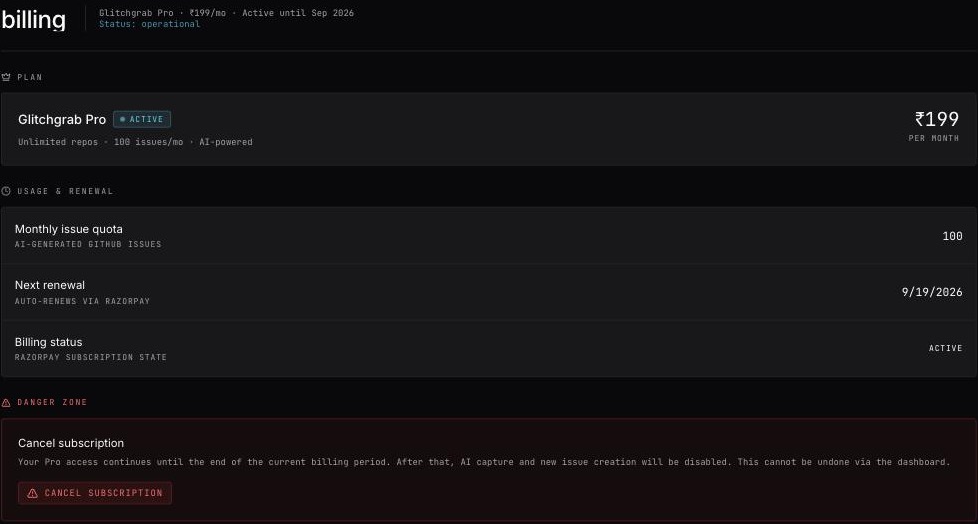
- Plan — Glitchgrab Pro, marked ACTIVE, with the monthly price.
- Usage & Renewal:
- Monthly issue quota — issues included per month;
- Next renewal — the date it renews (auto-renews via Razorpay);
- Billing status — the subscription's state at Razorpay.
Cancel
- Open Billing and scroll to Danger Zone.
- Press Cancel subscription.
- Confirm Cancel subscription? with Yes, cancel — or press Keep subscription.
- You will see Subscription cancelled. You have access until the end of your billing period.
Your Pro access continues until the end of the period you already paid for. Your repos, reports and guides are not deleted. A cancelled subscription can't be restarted from the dashboard — subscribe again with Upgrade to Pro.
Messages
- Payment verification failed — Razorpay did not confirm the payment. If money was taken, wait a few minutes and refresh Billing; if the plan still isn't active, contact support with the payment reference.
- Failed to create subscription — try again in a moment.